
The cloning function is particularly useful for client meetings that occur weekly or repeatedly, as it eliminates the need to recreate the note from scratch each time.
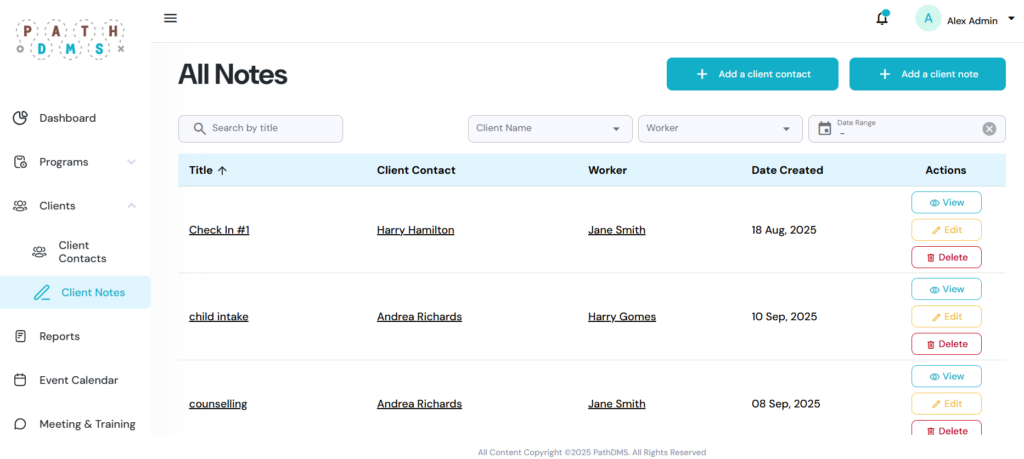
Step 1 – Access the Client Notes Page
- From the left sidebar, click on Clients, then select Client Notes.
- You will see a list of existing activities with details such as title, activity date, submitted date, worker, and status.
Step 2 – Open the Client Note that you want to clone
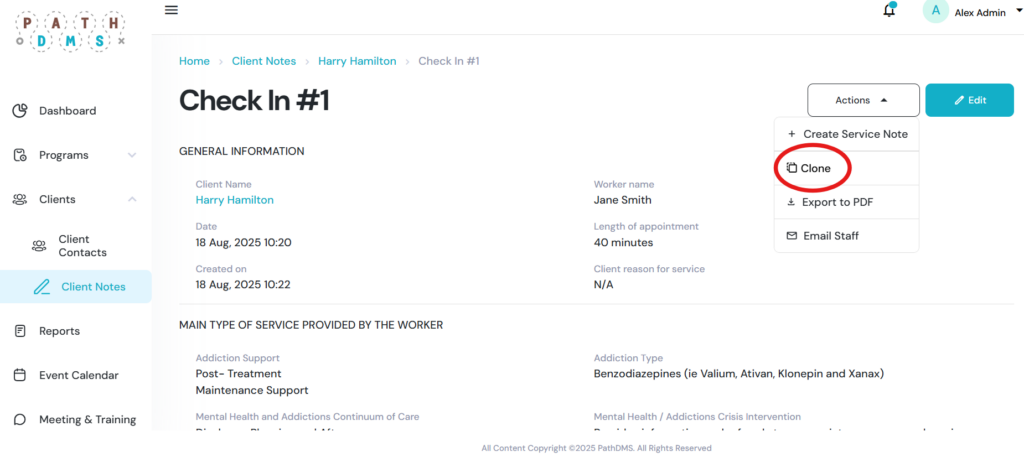
- Click the title of the note that you want to clone. This will open the note overview page.
- From the overview, select Actions and choose Clone from the dropdown menu.
Step 3 – Edit the Cloned Note
- The cloned note will automatically populate all details from the original. Review each section and update any information that requires modification. Be sure to edit items such as the date, the length of the appointment, and any other relevant details.